K9s
K9s is a terminal UI that makes managing Kubernetes clusters easier.
Core features of k9s include:
- Editing of resource manifests
- Shell into a Pod / Container
- Log viewing and port-forwarding
- Managing multiple Kubernetes clusters from one tool
More information and current releases are on the GitHub repository and at k9scli.io.
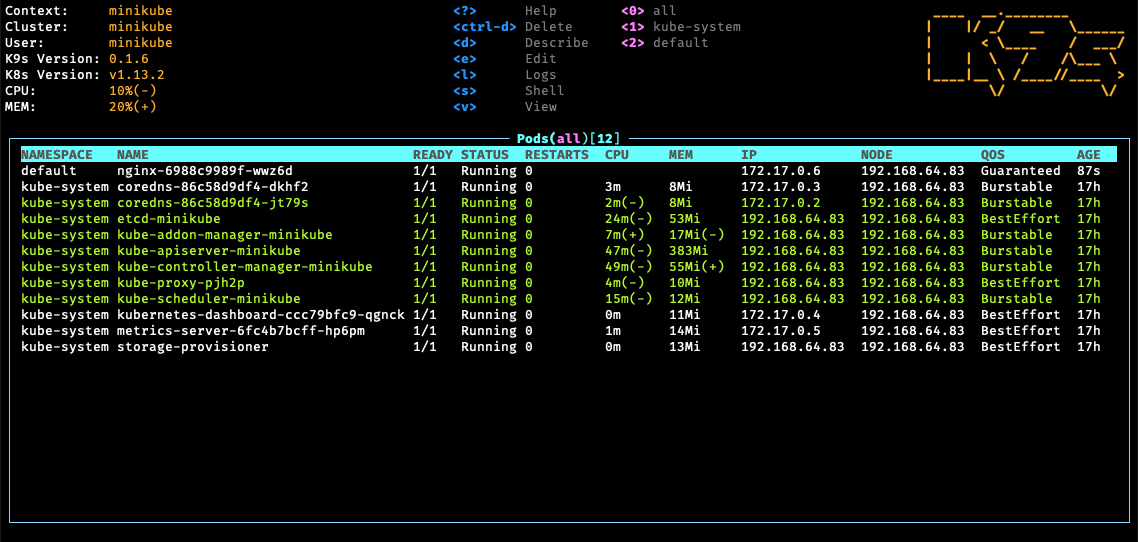
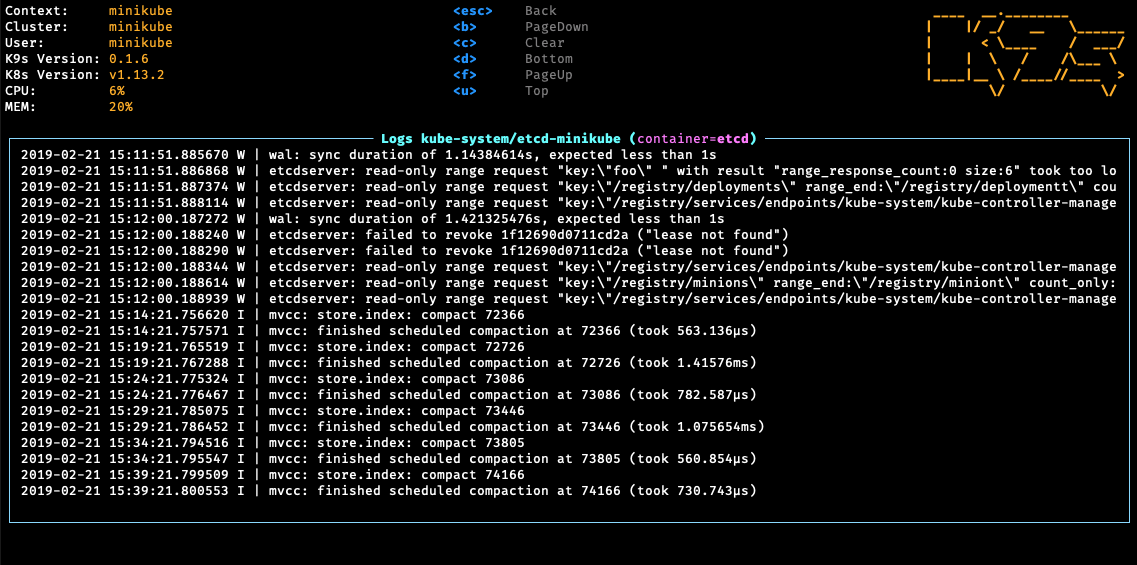
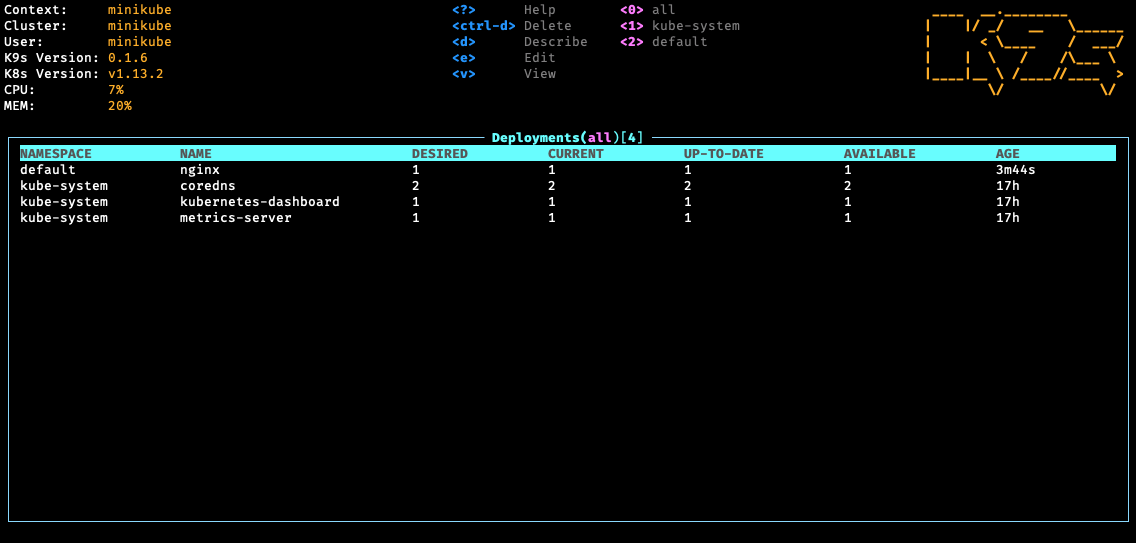
Screenshots:
Installation #
On Linux #
Using Homebrew on Linux (Homebrew), snap or a release archive.
brew install k9sTo use a release archive, check the release page, pick the package for your platform (for example k9s_Linux_amd64.tar.gz) and replace <VERSION>:
wget https://github.com/derailed/k9s/releases/download/<VERSION>/k9s_Linux_amd64.tar.gz
tar -xvf k9s_Linux_amd64.tar.gz k9s
sudo install -o root -g root -m 0755 k9s /usr/local/bin/k9s
The archive name must match what you downloaded (the architecture part is amd64 or arm64).
On macOS #
brew install k9sOn Windows #
choco install k9sSee Chocolatey.
Run #
k9s                          # current context
k9s -n kube-system           # start in a namespace
k9s --context <CONTEXT>      # use another context
k9s --readonly               # disable all write actions
k9s uses your kubeconfig and KUBECONFIG variable, like Kubectl.
Commands #
Cluster selection #
Once k9s has started, you work with the cluster of your current kubeconfig context.
Switch cluster at any time by typing :context. A list of available contexts appears. Select one with the arrow keys and press enter.
General command structure #
Menu
Press : to bring up the command prompt, type the resource type to switch to (for example pod, svc, deploy) and press enter. :q or ctrl+c quits.
Selection
Select with the arrow keys (or j and k). Press enter to confirm or to “drill down”, for instance from a pod into its containers. esc goes back.
Filter and searches
On most screens press / followed by a term to filter or search (for instance in a pod’s log output). Press enter to apply. Use /!term to invert the filter, /-l app=web to filter by label and /-f term for fuzzy.
The number keys select namespace shortcuts; 0 shows all namespaces.
Useful shortcuts and commands #
| Command | Comment | Comparable kubectl command |
|---|---|---|
:pod | Switches to the pod screen, where you can see all pods on the current cluster. | kubectl get pods --all-namespaces |
:svc | Switches to the service screen. | kubectl get services --all-namespaces |
:ns | Switches to namespaces. | kubectl get namespaces |
:deploy | Switches to deployments. | kubectl get deploy -A |
:node | Switches to nodes. | kubectl get nodes |
:events | Cluster events. | kubectl get events -A |
:xray deploy | Tree view of a resource and what it owns. | |
:pulse | Cluster overview dashboard. | kubectl top and friends |
:popeye | Cluster sanitizer report (when Popeye reports are enabled). | |
? | Show all keys for the current screen. | |
d | Describe the selected resource. | kubectl describe <resource> <name> |
y | View the YAML. | kubectl get <resource> <name> -o yaml |
e | Edit the resource. | kubectl edit <resource> <name> |
ctrl+d | Delete a resource (asks for confirmation). | kubectl delete <resource> -n <namespace> |
ctrl+k | Kill a resource (no confirmation). | |
s | On the pod screen, open a shell in the selected pod. | kubectl exec -it -n <namespace> <pod_name> -c <container_name> -- /bin/sh |
l | Show the log output of a pod. | kubectl logs -n <namespace> <pod_name> |
p | Previous logs of the container (in the log view). | kubectl logs --previous |
shift+f | Port-forward the selected pod or service. | kubectl port-forward |
r | Restart (deployments, statefulsets, daemonsets). | kubectl rollout restart |
x | Decode a secret (on the secrets screen). | kubectl get secret -o jsonpath=... | base64 -d |
ctrl+a | List all available resource aliases. | kubectl api-resources |
Key bindings can differ between versions. Press ? inside k9s for the list that applies to your version. Configuration lives in ~/.config/k9s (or $XDG_CONFIG_HOME/k9s), where config.yaml, aliases.yaml, hotkeys.yaml and skins can be edited.